Team をアイデンティティプロバイダグループと同期する
You can synchronize a GitHub team with an identity provider (IdP) group to automatically add and remove team members.
Team synchronization is available for organizations and enterprise accounts using GitHub Enterprise Cloud. 詳しい情報については「GitHubの製品」を参照してください。
ここには以下の内容があります:
- Team の同期について
- 同期される Team のメンバーに関する要件
- 必要な環境
- Connecting an IdP group to a team
- Disconnecting an IdP group from a team
Were you able to find what you were looking for?
Thank you! Your feedback has been submitted.
Note: Team synchronization with Okta is currently in beta and subject to change.
Team の同期について
When you synchronize a GitHub team with an IdP group, changes to the IdP group are reflected on GitHub automatically, reducing the need for manual updates and custom scripts. You can use an IdP with team synchronization to manage administrative tasks such as onboarding new members, granting new permissions for movements within an organization, and removing member access to the organization.
You can connect up to five IdP groups to a GitHub team. An IdP group can be assigned to multiple GitHub teams without restriction.
Once a GitHub team is connected to an IdP group, your IdP administrator must make team membership changes through the identity provider. You cannot manage team membership on GitHub or using the API.
All team membership changes made through your IdP will appear in the audit log on GitHub as changes made by the team synchronization bot. Your IdP will send team membership data to GitHub once every hour. Team を IdP グループに接続すると、Team メンバーが削除される場合があります。 詳細は「同期される Team のメンバーに関する要件」を参照してください。
Parent teams cannot synchronize with IdP groups. If the team you want to connect to an IdP group is a parent team, we recommend creating a new team or removing the nested relationships that make your team a parent team. For more information, see "About teams," "Creating a team," and "Moving a team in your organization's hierarchy."
To manage repository access for any GitHub team, including teams connected to an IdP group, you must make changes with GitHub. 詳細は「Team について」および「Organization リポジトリへの Team のアクセスを管理する」を参照してください。
You can also manage team synchronization with the API. 詳しい情報については GitHub 開発者ドキュメンテーション で「Team の同期」を参照してください。
同期される Team のメンバーに関する要件
After you connect a team to an IdP group, membership data for each team member will synchronize if the person continues to authenticate using SAML SSO with the same SSO identity on GitHub, and if the person remains a member of the connected IdP group.
Existing teams or group members can be automatically removed from the team on GitHub. SSO を使用して Organization または Enterprise アカウントに認証されていない既存の Team またはグループのメンバーは、リポジトリにアクセスできなくなります。 接続先の IdP グループにいない既存の Team またはグループのメンバーも、リポジトリにアクセスできなくなる可能性があります。
削除された Team メンバーは、SSO を使って Organization または Enterprise アカウントに認証され、接続先の IdP グループに移動すれば、再び Team に自動的に追加できます。
意図しない Team メンバーの削除を避けるために、Organization または Enterprise アカウントで SAML SSO を施行し、メンバーシップデータを同期するため新しい Team を作成し、IdP グループのメンバーシップを確認してから既存の Team を同期することをおすすめします。 詳細は「Organization で SAML シングルサインオンを施行する」を参照してください。
Organization が Enterprise アカウントによって所有されている場合、その Enterprise アカウントに Team の同期を有効化すると、Organization レベルの Team の同期はオーバーライドされます。 詳細は、「Enterprise アカウントでセキュリティ設定を強制する」を参照してください。
必要な環境
Before you can connect a team with an identity provider group, an organization or enterprise owner must enable team synchronization for your organization or enterprise account. For more information, see "Managing team synchronization for your organization" and "Enforcing security settings in your enterprise account."
To avoid unintentionally removing team members, visit the administrative portal for your IdP and confirm that each current team member is also in the IdP groups that you want to connect to this team. アイデンティティプロバイダにこうしたアクセスができない場合は、IdP 管理者にお問い合わせください。
You must authenticate using SAML SSO. 詳しい情報については「SAMLシングルサインオンで認証する」を参照してください。
Connecting an IdP group to a team
- GitHubの右上で、プロフィール画像をクリックし、続いてYour profile(あなたのプロフィール)をクリックしてください。

- プロフィールページの左側で、"Organizations"の下であなたのOrganizationのアイコンをクリックしてください。

- Organization名の下で、 Teamsをクリックしてください。
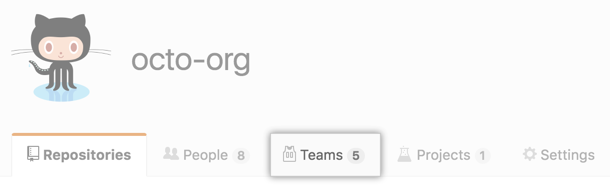
- Teamsタブで、Teamの名前をクリックしてください。

- Team ページの上部で、 Settings(設定)をクリックしてください。

- Under "Identity Provider Groups", use the drop-down menu, and select up to 5 identity provider groups.

- [Save changes] をクリックします。
Disconnecting an IdP group from a team
If you disconnect an IdP group from a GitHub team, team members that were assigned to the GitHub team through the IdP group will be removed from the team.
- GitHubの右上で、プロフィール画像をクリックし、続いてYour profile(あなたのプロフィール)をクリックしてください。
- プロフィールページの左側で、"Organizations"の下であなたのOrganizationのアイコンをクリックしてください。
- Organization名の下で、 Teamsをクリックしてください。
- Teamsタブで、Teamの名前をクリックしてください。
- Team ページの上部で、 Settings(設定)をクリックしてください。
- Under "Identity Provider Groups", to the right of the IdP group you want to disconnect, click .

- [Save changes] をクリックします。
Were you able to find what you were looking for?
Thank you! Your feedback has been submitted.